![PLAYIT_RGB_wit.png]](https://support.playit.training/hs-fs/hubfs/PLAYIT_RGB_wit.png?height=40&name=PLAYIT_RGB_wit.png)
1. Start a New Training
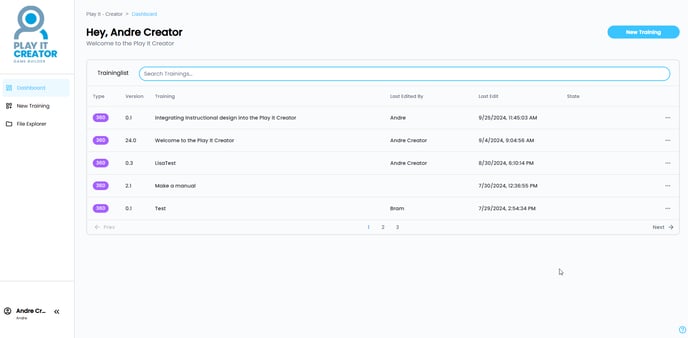
Login to https://create.playit.training. From your Creator dashboard, click New Training. You’ll find it in the top-right corner or in the left-hand menu.
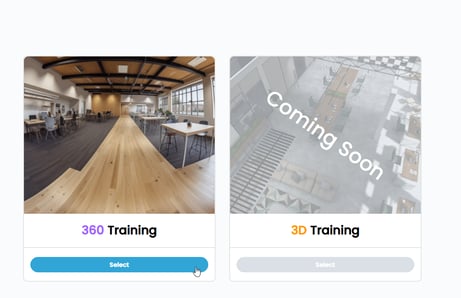
Next, click Select under the 360° Training template, currently the only available
training type.
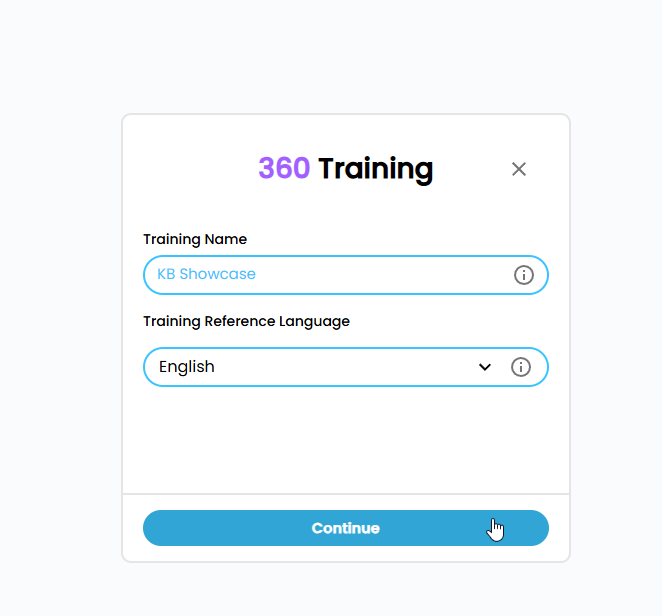
You'll be asked to:
-
Enter a name for your training.
- Choose a reference language: this is the main language in which you’ll build your course before translating.
You can now start building your course with Play it Creator.
2. Add Your First Bubble
Think of a bubble as a step in your course, like a “room” or “scene” where something happens.
Click “Add Bubble”, and you’ll be prompted to upload or select an image.
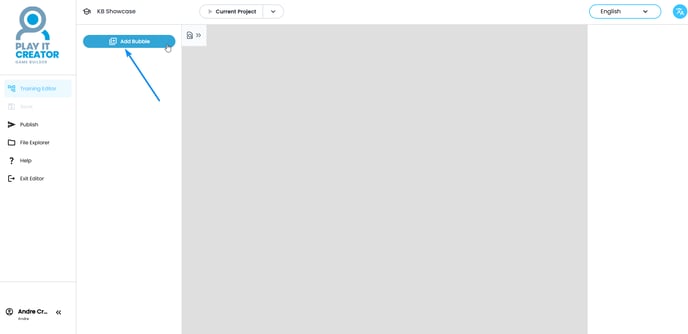
This can be:
-
A 360° photo (ideal for immersive environments)
-
A flat image (2D), if you want something simpler
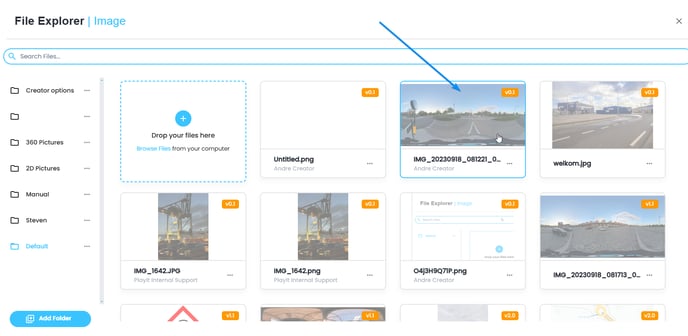
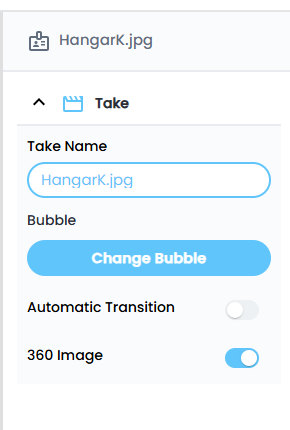
Once you've added your bubble, you'll see a menu appear on the right side of the editor. Here you can:
-
Optionally rename the bubble.
-
Configure two settings:
- Automatic Transition (learn more in our article on [bubble transitions]_)
-
360 Image: this is checked by default. Leave it on if you're using a 360° photo. Uncheck it if your image is a regular 2D photo.
3. Add interactions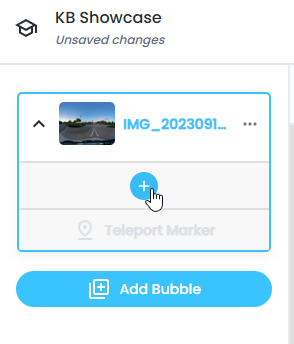
Every bubble has a blue "+" icon. Click this to add an interaction.
This opens the Interaction Picker, where you can:
-
Explore different interaction types (quiz, hotspot, audio, etc.)
-
Preview them
-
Click Add Interaction to insert it into the bubble
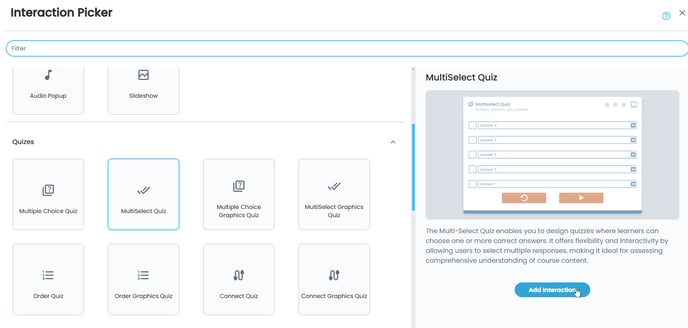
Fill in the interaction with your content. Want to add more? Just click "+" again. Each bubble can have multiple interactions, and they can really bring your training to life, whether you’re checking knowledge or pointing out risks.
👉 The interaction types explained
👉 Tips when creating a course
4. Translate Your Training
Once your content is complete in the reference language, you can add other languages. Click the language icon in the top right menu. 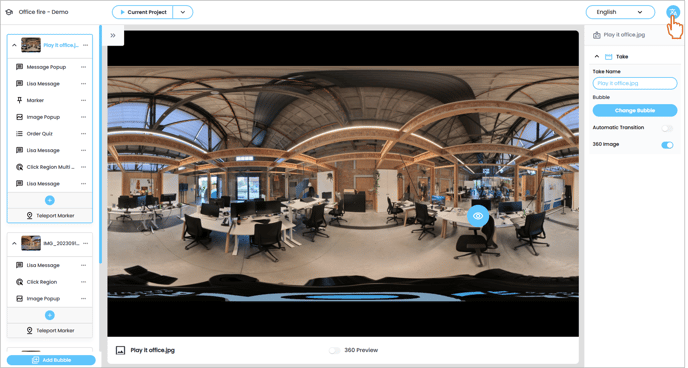
You can:
-
Add a new language
-
Use AI to auto-translate
-
Manually tweak translations (recommended!)
-
Or download everything to Excel, edit, and upload it again
Keep your reference language clean and consistent. It makes translating way easier. Especially if you’re working with more than 2 languages.
👉The translation tool in Play it Creator
👉 Add localized asssets in Play it Creator
5. Publish Your Course
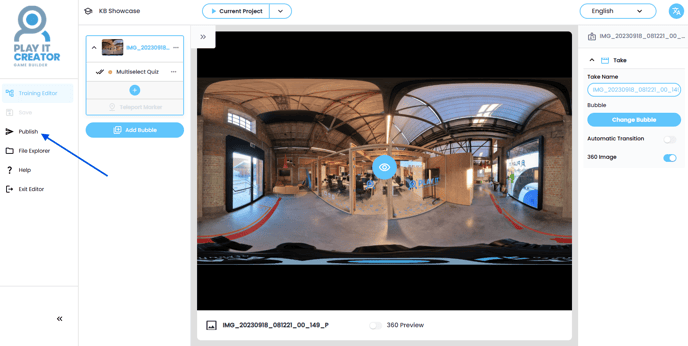
Ready to launch? Click the Publish button in the left menu.
Fill in name and description in Dutch, French, and English (required to publish). These will show up later in the Play it Portal and the player, so it's worth taking a minute to get them right.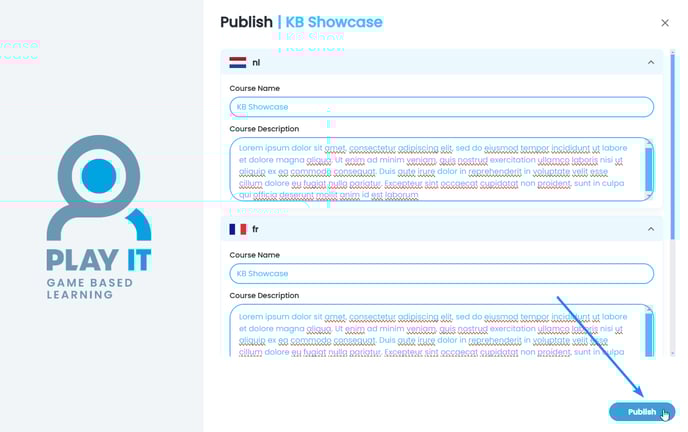
Click Publish
The Creator will now process your course and prepare it for use in the Play it Portal.
6. Add the Course to a Learning Path
Your course is now ready to be assigned. Login to Play it portal: https://portal.playitsafe.eu
Go to Learning Paths and:
-
Find your Creator course in the Available Courses list
-
Click Learning Paths > + to add it to an existing or new path
-
Fill in a name, estimated duration, and save
Descriptions you filled in earlier will be prefilled in multiple languages.
👉 Creating and managing learning paths
7. Link to a Group
Last setup step: link your learning path to a user group so people can actually access it. This happens in the Groups section of the admin portal.
👉 Creating and managing groups
8. Play the Course
Head to https://play.playitsafe.eu and log in as an end-user.
Your learning path will be listed on the left, with the course on the right.
Click the course and hit Start, your Creator training is now live and playable!