![PLAYIT_RGB_wit.png]](https://support.playit.training/hs-fs/hubfs/PLAYIT_RGB_wit.png?height=40&name=PLAYIT_RGB_wit.png)
The translation tool
You can translate full courses including interactions, questions, and even spoken instructions into your selected languages with this tool. You can
- Use AI translation to convert your content in just a few clicks.
- Export and import translation files to edit them in bulk using Excel.
- Tweak translations right in the platform.
Supported languages
Translate your content into 25 languages.
| Arabic | Bulgarian | Chinese | Croatian | Czech |
| Dutch (BE/NL) | English | Estonian | Finnish | French |
| German | Hungarian | Italian | Lithuanian | Norwegian |
| Norwegian Nynorsk | Polish | Portuguese | Romanian | Russian |
| Slovak | Spanish | Swedish | Turkish | Ukrainian |
What gets translated
- Questions
- Interactions
- Pop-up titles
- Lisa Messages
For localized images, see How to add localized assets in the Creator.
How to use the translation tool
Once your course is created in the reference language, you can add translations in other languages. Click on the language icon on the right in the top bar.

The translation tool appears, showing:
- The reference language (REF in green)
- All added target languages
- A clear color legend for AI (orange) and manual edits (blue)
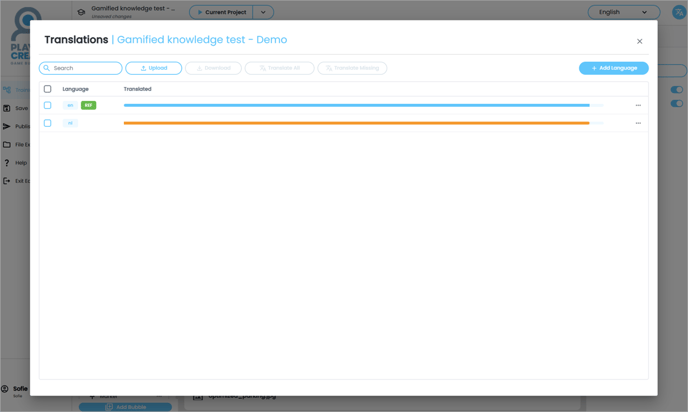
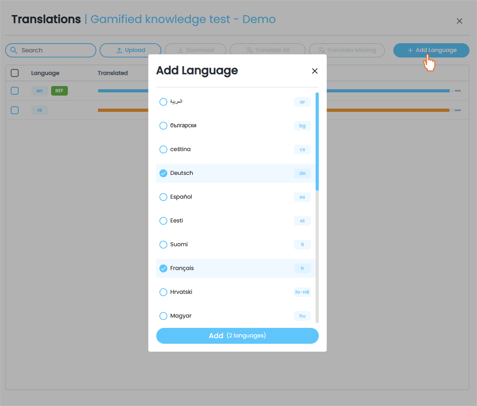
To add a language, click on 'Add Language', select one or more languages from the list and click 'Add'.
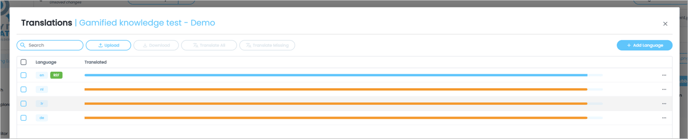
The selected languages have been added to the list. Translations were based on the reference language. To change the reference language, click the three dots next to the language you want to set as the reference. We recommend using English as the reference language, as it is widely supported by AI language models and typically yields the highest-quality translations.
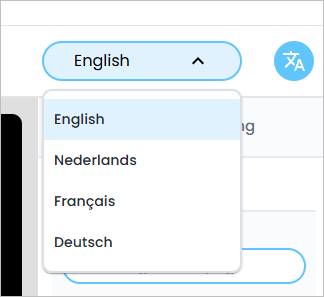
You can now easily switch between languages in the Creator by using the dropdown menu.
You have the option to manually edit the translations right within the Creator. When you make manual adjustments, the color indicator in the translations tool will change to show a mix of blue and orange. This indicates that the course contains both AI-generated translations and your manually edited content.
Extra options
Upon selecting a language, additional options will become available:

Download
Click this button to download an Excel file that contains all the current text in the selected languages. You can use this file to easily view and edit translations outside the platform.
Upload
Once you've made changes in the Excel file (for example, updated or added translations), use this button to upload the file back into the platform. This will automatically update the texts in the system based on your changes.
Translate All - AI
Click this button to automatically translate all texts into the selected languages using artificial intelligence. This includes both missing translations and existing ones.
Translate Missing - AI:
This option will only translate texts that are currently missing, using AI. It won’t overwrite translations that already exist.