![PLAYIT_RGB_wit.png]](https://support.playit.training/hs-fs/hubfs/PLAYIT_RGB_wit.png?height=40&name=PLAYIT_RGB_wit.png)
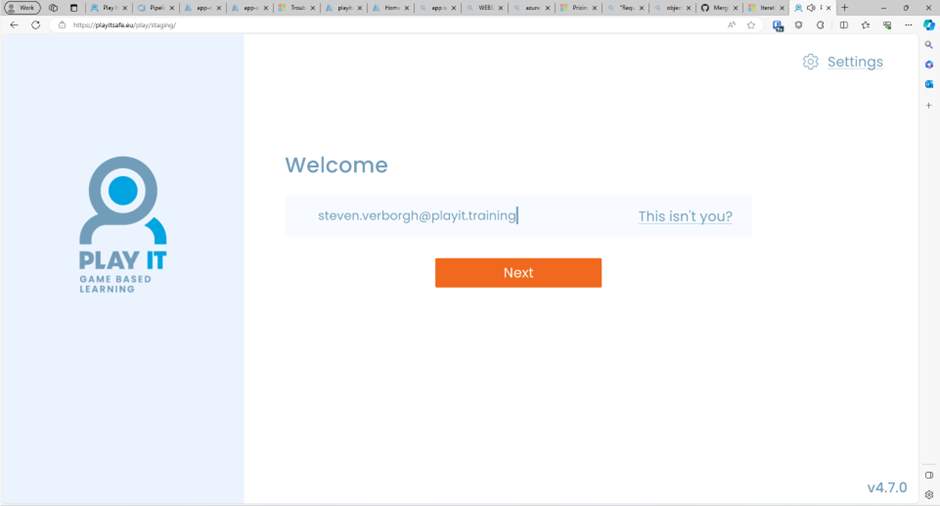
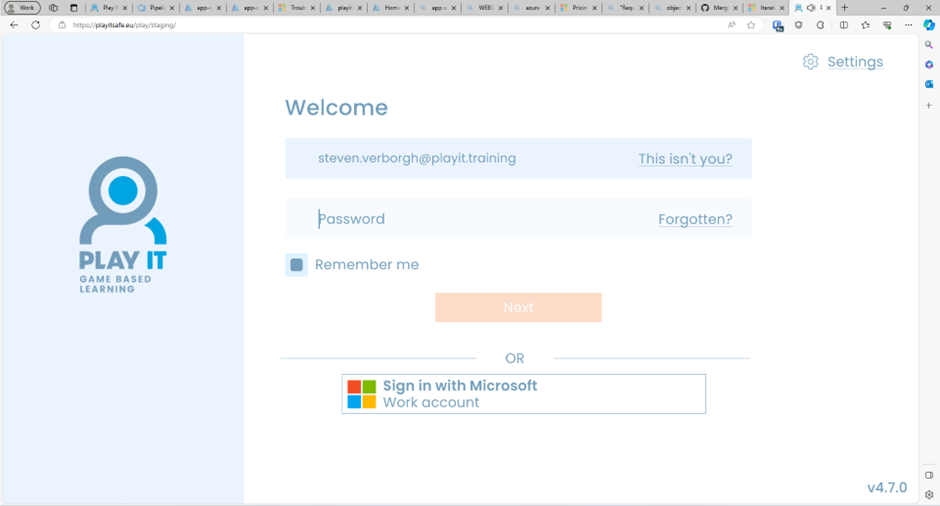
The PLAY IT Game supports SSO through single sign on. When the App Registration was made in the Organization active directory, and the tenant id was registered in the PLAY IT Platform a user should be greeted with a “Sign in with Microsoft” button when providing a valid email.
If you are using selfregistration, users will need to use the https://play.playitsafe.eu/?authtype=aad url in order to be able to register.
App Registration in Azure by default allow all your user to log in into the PLAY IT Game. As shown by the disables “Assignment Required” toggle on the Enterprise Application available in your Active Directory/Entry called “Play It Safe Game”.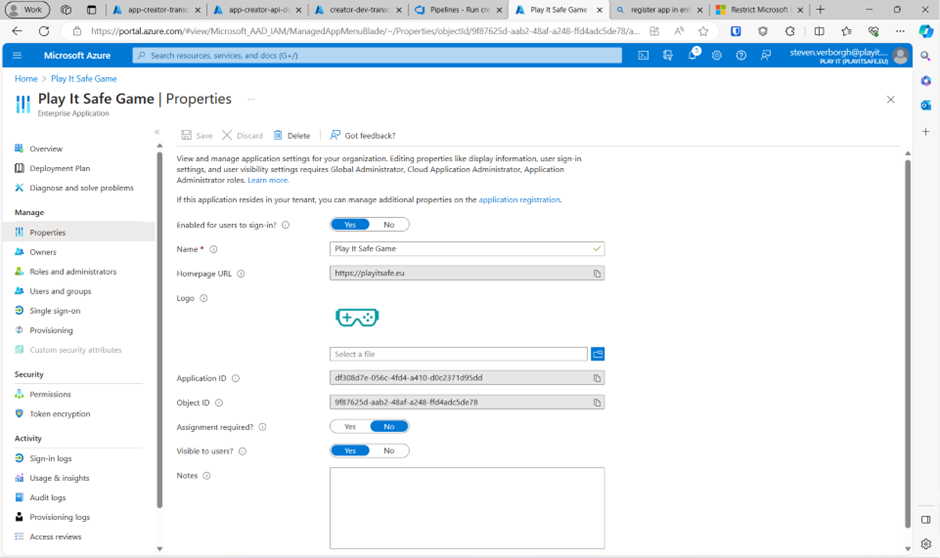
They will be able to log in to the application using the normal flow for your Active Directory/Entra settings.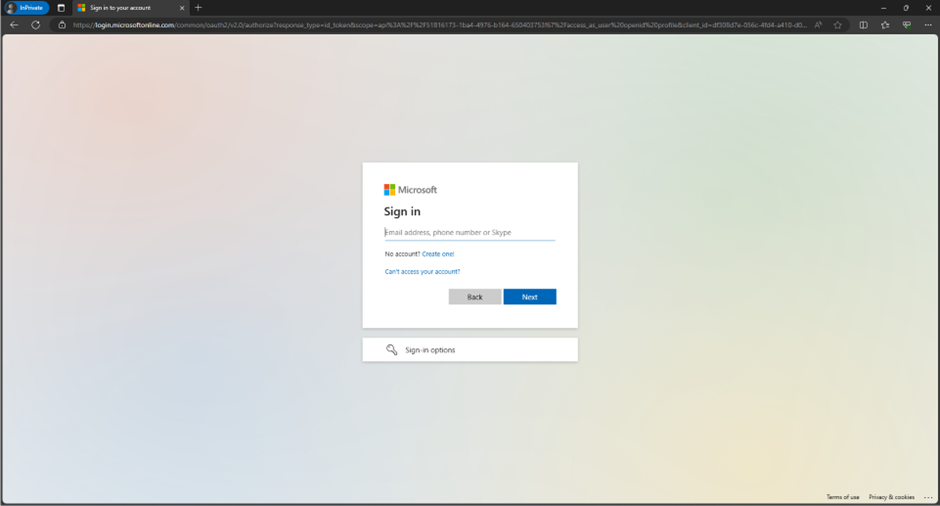
Enabling the “Assignment required” option will lead to your users not being able to use the application. 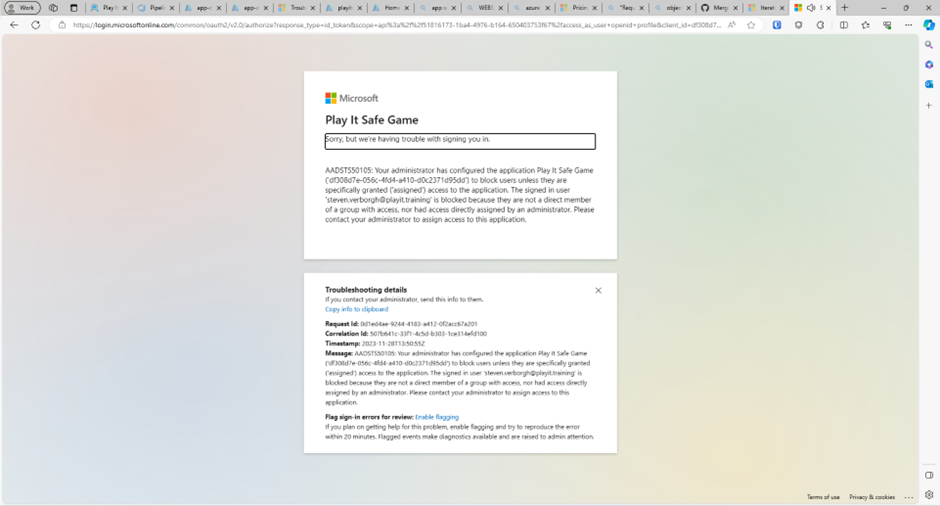
To assign access to users and/or groups (depending on you Azure licence) you need to open the “users and groups” entry under manage of the Play It Safe enterprise application.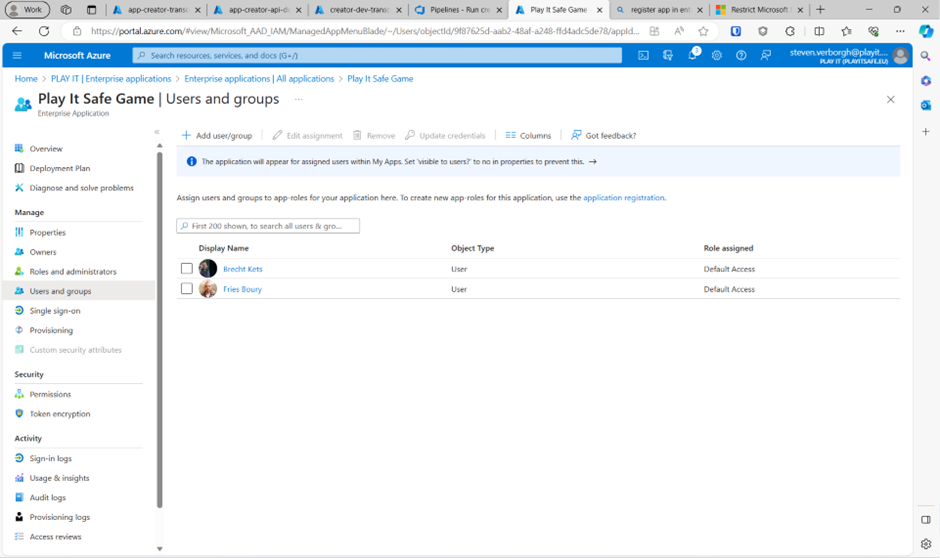
After choosing “Add user/group” click the “none selected” to select a user or group. The Play It Safe app does not support any roles besides the default role.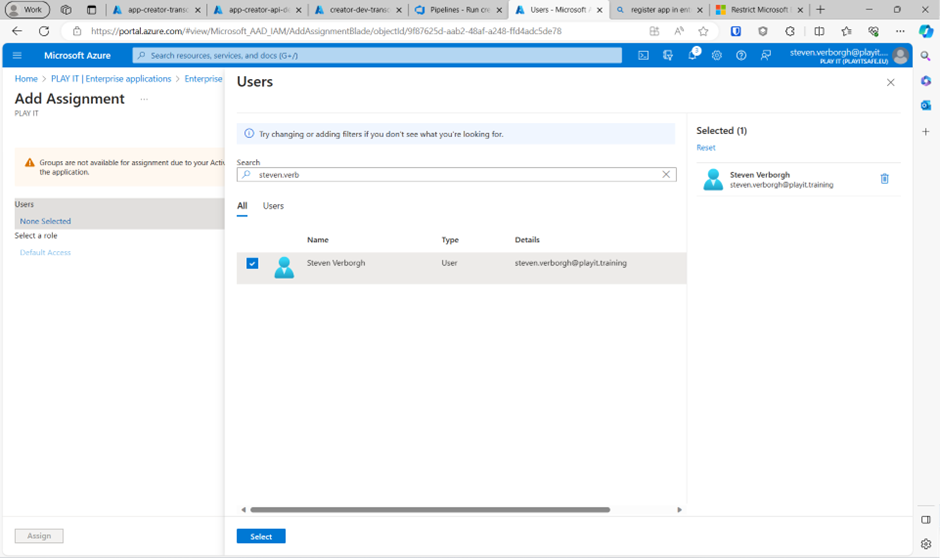
Finish the assignment by clicking Assign.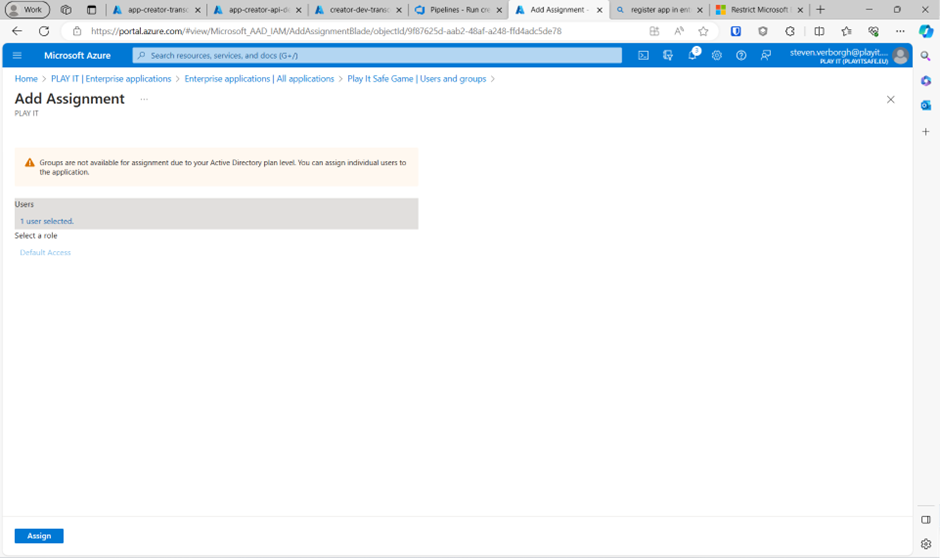
The user should show up in the list.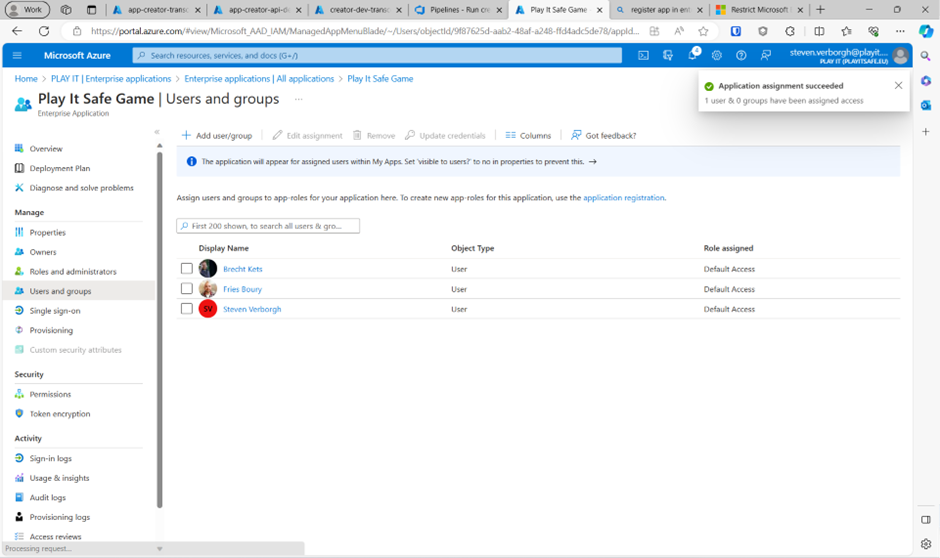
And he should have access to the PLAY IT Game.